Importing Contacts
Importing A File Manually
For users who do not wish to utilize the segmentation capabilities of DataMart, you are still able to upload a list strictly to be used for deployment. Follow this tutorial to find out how.
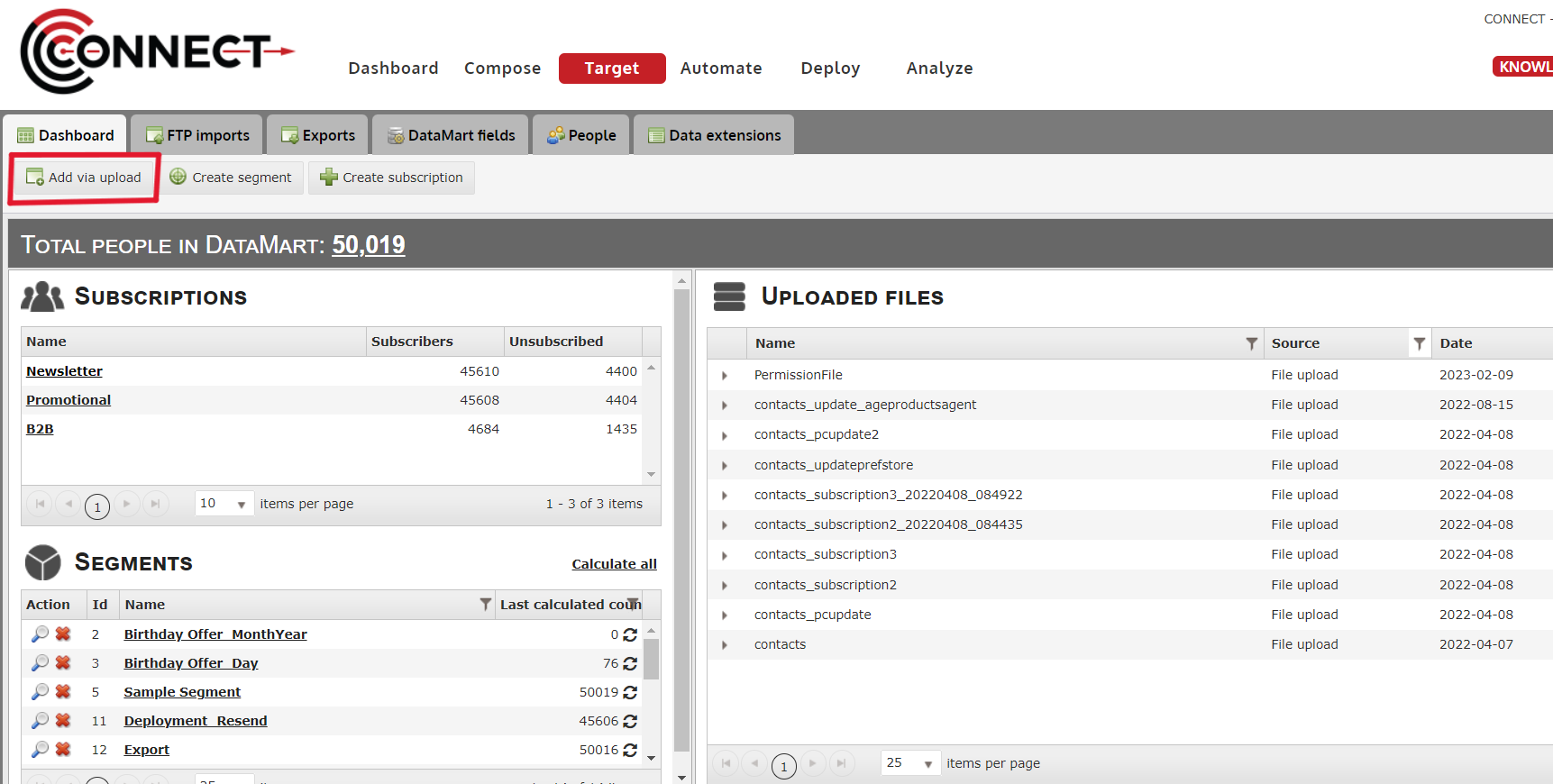
1. Click on the "Add Via Upload" button from the Target screen
2. Click "Select File..." to select the file to upload and click "Continue"
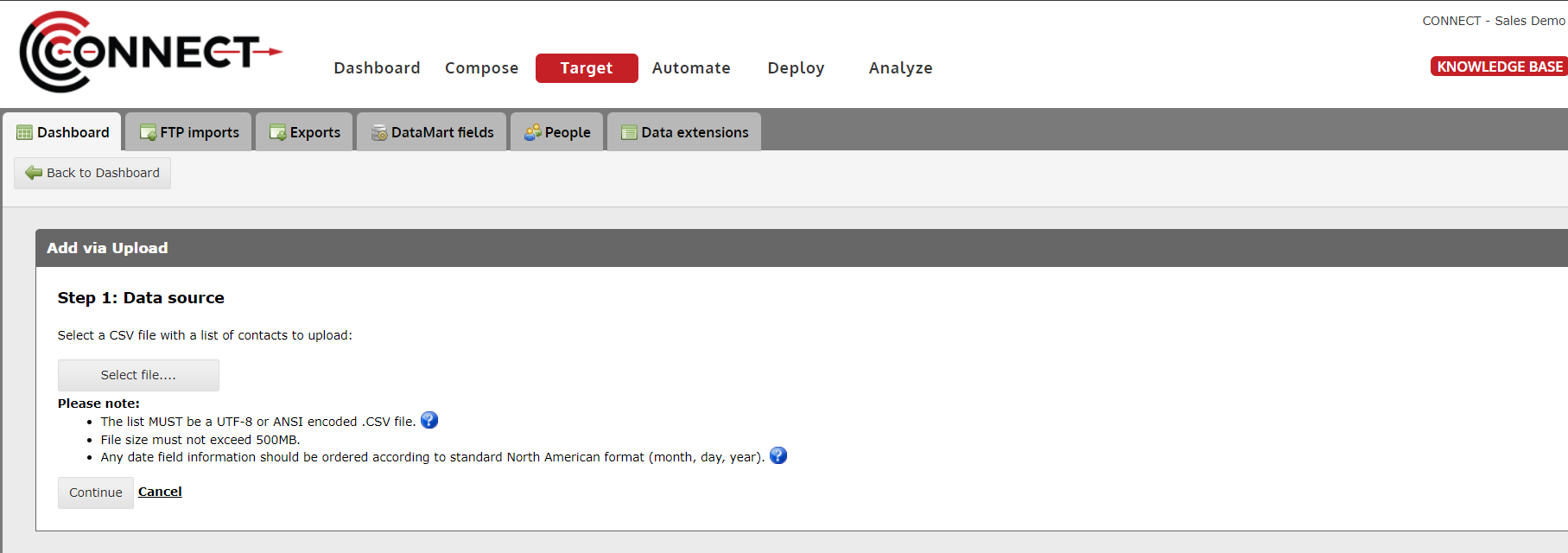
Please make note of the file requirements stated on the page
3. Map all fields to the correct fields in the DataMart if it has not automatically done so
If you have fields in your list that do not map to any field in the DataMart, you may return to the Target screen and go to the "Manage Fields" screen to add one OR you may click the "Do Not Map" box next to the field.
Only use the "Do Not Map" function if you do not plan to use the data in eithe deployment (ie. Fields with Dynamic Variables need to be mapped)
4. Optional - Set Permission Settings
This is an optional setting and should only be set if the records you are uploading have requested to change their permission settings (i.e. Subscribed/Unsubscribed through a form), you are importing subscribers from another system or are looking to bulk update subscription information.
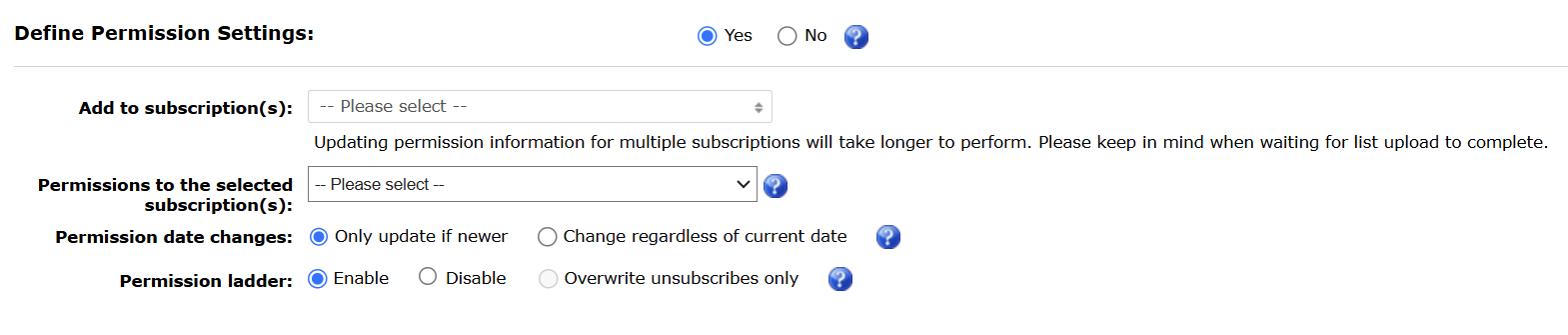
Add to subscriptions - Select the subscription(s) you wish to set permissions for
Permissions to the selected subscription(s) - The permission setting you wish to give attempt to give all contacts in the list
This can be set at a record level by including a column in your file with the header permission-level and providing one of the following values: double-optin, express, implied, implied-6mo, implied-2yr, unsubscribed
Permission date changes
This setting identifies whether you want to only update the permission level and date if the date/time provided is newer or if you are confident the date you have is the correct one, you can change the level and date regardless.
It is HIGHLY recommended that you provide a date in the file using a column with the header permission-date that uses the date format YYYY-MM-DD HH:MM:SS. If no date is provided in the file, CONNECT will assume the current date/time and therefore all contact's date will be updated.
Permission ladder
CONNECT provides an easy to way to manage updating subscriber permissions to maintain compliance. The "Permission Ladder" is a failsafe that allows contacts to move up a theoretical "ladder" of permissions but prevent them from coming down. The ladder order is as follows:
- Unsubscribe
- Double Opt-in
- Express
- Implied
- Unassigned
5. Click "Upload records to DataMart" to finish
6. Click "Continue" on the next screen.
View the progress of your upload on the Dashboard
Once you click "Upload" and return to the Target Dashboard, you will be able to view the progress of your list upload.

After your upload is finished, we HIGHLY recommend review the results of your upload to ensure all records were uploaded successfully. To do this, click on the arrow icon next to the filename and the results will expand. Pay particular attention to the "Total rejected records" count. If there are any records that were rejected, you can click, that count and download them to see why they were rejected.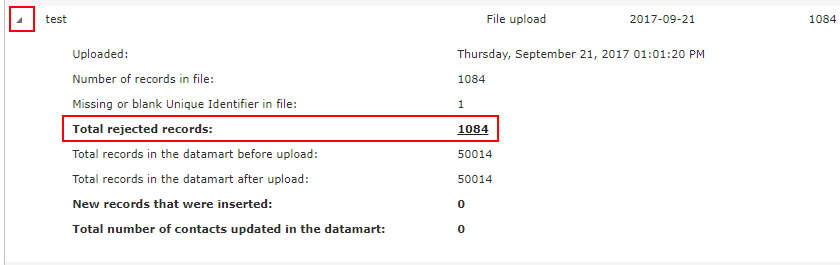
Automated FTP Imports
Permission Settings When Importing
When importing data either through a manually upload or FTP, you have the option to "Define Permission Settings" as part of the upload. This will change every contact's subscription permission details based on the selected settings.
Add to subscriptions - Select the subscription(s) you wish to set permissions for
Permissions to the selected subscription(s) - The permission setting you wish to give attempt to give all contacts in the list
This can be set at a record level by including a column in your file with the header permission-level and providing one of the following values: double-optin, express, implied, implied-6mo, implied-2yr, unsubscribed
Permission date changes
This setting identifies whether you want to only update the permission level and date if the date/time provided is newer or if you are confident the date you have is the correct one, you can change the level and date regardless.
It is HIGHLY recommended that you provide a date in the file using a column with the header permission-date that uses the date format YYYY-MM-DD HH:MM:SS. If no date is provided in the file, CONNECT will assume the current date/time and therefore all contact's date will be updated.
Permission ladder
CONNECT provides an easy to way to manage updating subscriber permissions to maintain compliance. The "Permission Ladder" is a failsafe that allows contacts to move up a theoretical "ladder" of permissions but prevent them from coming down. The ladder order is as follows:
- Unsubscribe
- Double Opt-in
- Express
- Implied
- Unassigned
Use Case
You are uploading a list of contact captures through a form that have given you implied consent to email to them. In the file are a few subscribers that already exist in your email program. If those subscribers have given you express permission through other means or have unsubscribed from your email program, you would not want their permission "downgraded" to implied even though that permission capture is newer. The ladder prevents the existing subscribers from being updated with the implied permission as they can't "step down the ladder" when it's enabled.