The Analyze Screen
- A/B Testing
- CONNECT Home Page - Opens by Device
- CONNECT Home Page - Active/Inactive
- CONNECT Home Page - 12 Month Trend
A/B Testing
The Analyze tab gives the user a high level overview of the different data points for each versions and each test type (Subject or Content)
- By clicking the arrow as shown on the illustration, it will display the metrics related to the A/B test deployment
- When clicking on the gear icon, it will show the analytics around the logic that was created for Dynamic subject line or Dynamic HTML content.
CONNECT Home Page - Opens by Device
On the home page, you might have noticed that you have a pie graph that that shows "Opens by Device" percentages. This graph will give you great insight in what devices the contacts you are sending to are using to view your email campaigns.
This gives you the knowledge necessary to know what devices you should be testing your emails on. For an in depth description on the graph, see below.
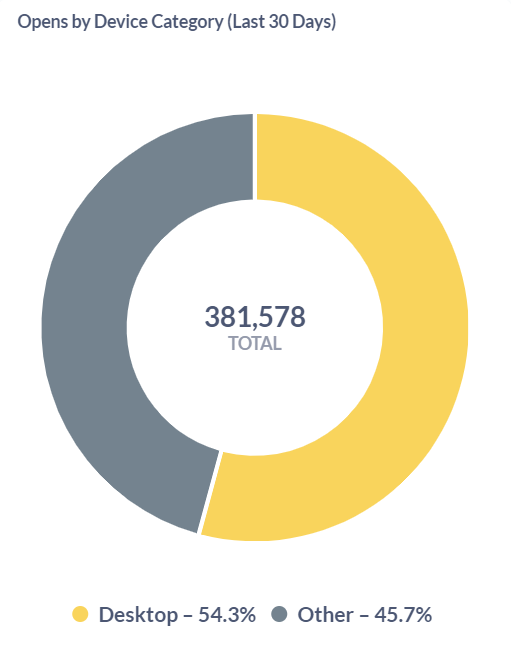
The Opens by Device graph shows the percentage of opens that occurred on each type of device (PC/Mobile). This is calculated by reviewing all campaigns sent over the past 6 months and grouping the opens into different categories and providing back a percentage. Below you'll find a description for each element of the the graph.
- Value - By hovering over a slice of the pie graph, you can see the exact value and the device it applies to.
- Updated - The data that the graph uses is updated on a daily basis. The "Updated" date/time stamp provides insight into when the data for the graph was last updated by the system.
CONNECT Home Page - Active/Inactive
On the home page, you might have noticed you have a bar graph that shows "Active/Inactive" percentages. This graph will give you great insight into how much of your contact base is currently engaging in your email programs.
For an in depth description on the graph, see below.
The Active/Inactive graph shows you the percentage of contacts you've deployed that are actively engaging in your email campaigns. This is calculated by reviewing all campaigns sent over the past 3 months and determining out of all contacts sent to, which contacts are older than 6 months and which contacts have opened or clicked in the past 6 months. Below you'll find a description for each element of the the graph.
- Percent - The Y axis of the graph uses a percentage value that changes based on the the largest value in the graph.
- Groups - The X axis of the graph displays 3 groups that are defined as the following.
The Active Group is the percentage of contacts you have been deploying to for at least 6 months that have opened or clicked any email campaign within the past 6 months. For you to have an Active group in CONNECT you need to have been deploying for at least 6 months before an active group can be determined.
The Inactive group is the percentage of contacts you have been deploying to for at least 6 months that have not opened or clicked any email campaign within the past 6 months. For you to have an Inactive group in CONNECT you need to have been deploying for at least 6 months before an active group can be determined.
The New group is the percentage of contacts you have been deploying to for at less than 6 months. If you have been deploying in CONNECT for less than 6 months, the New group will be 100%. - Value - By hovering over a bar on the graph, you can see the exact value and the group it applies to.
- Updated - The data that the graph uses is updated on a daily basis. The "Updated" date/time stamp provides insight into when the data for the graph was last updated by the system.
CONNECT Home Page - 12 Month Trend
On the home screen, you might have noticed you have a line graph that shows a "12 Month Trend". This graph will give you great insight into how your community is performing month over month. For an in depth description on the graph, see below.
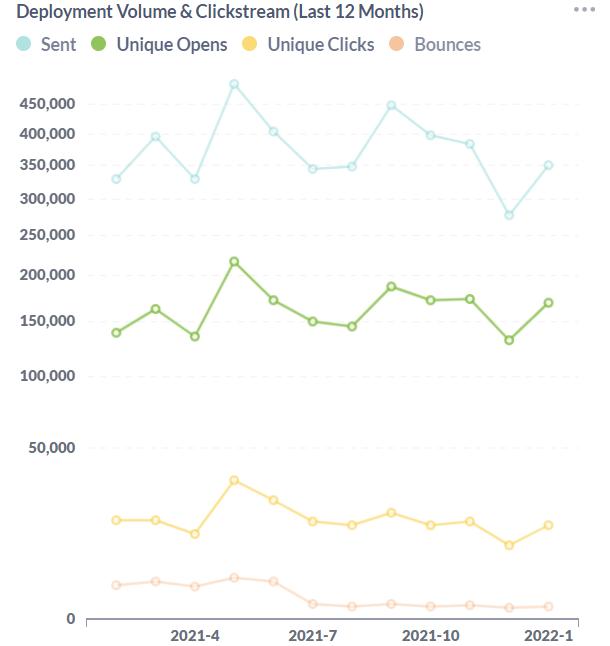
The 12 Month Trend graph shows you how your community is performing month over month. The 3 metrics it uses to depict your performance are open rate, click rate and unique click rate. An average for each metric is calculated by combining all of the deployments for that month and averaging the rate. Below you'll find a description for each element of the the graph.
- Percent - The Y axis of the graph uses a percentage value that changes based on the the largest value in the graph.
- Value - By hovering over an intersecting point on the graph, you can see the exact value and which month and metric it applies to.
- Months - The X axis of the graph displays each month that it has a value for. If you have been in CONNECT less than 12 months, it will only show the months you have actually deployed.
- Updated - The data that the graph uses is updated on a daily basis. The "Updated" date/time stamp provides insight into when the data for the graph was last updated by the system.